Step-by-Step Guide to Obtain Trip.com E-Receipt

By Trip.com
March 13, 2026
If you use Trip.com to book hotels, flights or other travel services, you may need an e-receipt for recording keeping. This guide will tell you what an e-receipt is and how to get it step by step.
Bangkok
Shanghai
Osaka
Seoul
See all flights


What Is a Trip.com E-Receipt?

When you use Trip.com to book flights, hotels, or travel packages, you’ll receive an electronic receipt for your travel orders. This digital file shows your booking details, order time, service information, and payment details. You can save it on your phone or computer, and print it if you need. Most people use it for expense reports, checking payment records or proving their travel bookings. It has the same use as a paper receipt, but it is more convenient and you will not lose it easily.
Getting an E-Receipt on Trip.com
Getting an e-receipt on Trip.com is easy. You can do it on the Trip.com mobile app or the Trip.com official website. The steps are almost the same for both. You only need to follow four simple steps to get your e-receipt fast.👇👇👀
Step | Action |
Login | Open the Trip.com app and log in. |
Select Booking | Navigate to "All Bookings" and select your booking. |
Request | Locate "More Options" and choose "E-Receipt". |
Receive | Enter your email and tap "Send". |
Stay Connected With Trip.com!
See all attractions
 669745 booked













Step 1: Manage My Booking
Open the Trip.com app and sign in to your account. Go to the 'My Bookings' section and select the specific booking you wish to access.
Go to ‘Manage My Booking’. Under the ‘More Options’ section, tap on the ‘Get a Receipt’ button.
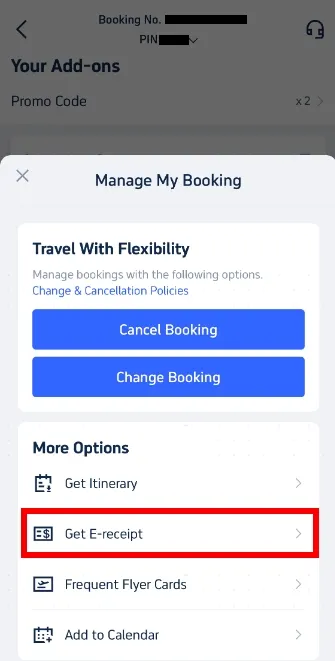
Step 2: Select E-Receipt
On the receipt page, select the flight e-tickets for which you need a receipt. Choose the relevant e-tickets and then tap ‘Continue.’
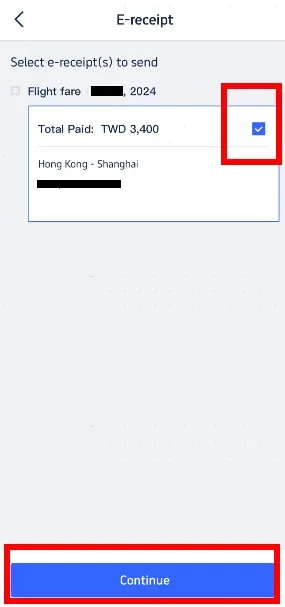
Step 3: Enter Details for the Receipt
Fill in your correct email address — this is very important, because the e-receipt will be sent there. If you need the receipt for work reimbursement, you may also need to fill in the receipt title (like your company name). Do note that once submitted, the type and name on the receipt cannot be changed so be sure to double check. Click ‘Send’ to complete the process and have your e-receipt sent to the email address you entered.
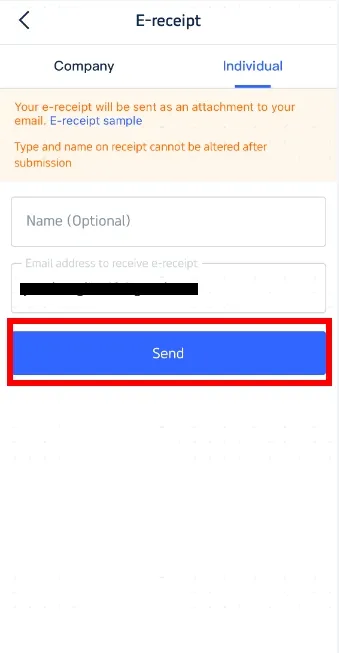
Step 4: Confirm & Receive E-Receipt
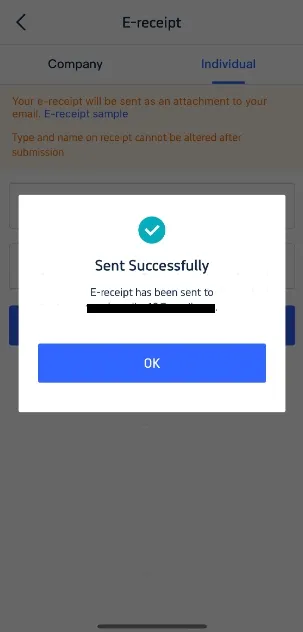
You will receive a confirmation message that the e-receipt has been sent successfully, click ‘OK’. Wait for 1 to 5 minutes, then open your email inbox to look for an email from Trip.com. The email will have your e-receipt as a PDF file attachment. Download the PDF file and save it. You can also print the PDF file if you need a paper copy. That’s all — you have successfully got your Trip.com e-receipt.
Additional Tips for Trip.com E-Receipts
- Missing Email: If you do not get the receipt email, check your spam or junk folder. Sometimes the system email goes there by mistake. If you find it there, mark it as "Not Spam" so that future e-receipts are sent to your inbox.
- Order Status: You can only get an e-receipt for finished or paid orders. If your order is not paid or still pending, the e-receipt option will not work.
- Update Your Email Address Regularly: Make sure that the email address linked to your Trip.com account is accurate and current, so you can receive all correspondence and receipts without delay. Verify and update your email address time to time if needed so that you don't miss any important document or notification.
- Save the Receipt: Save the PDF file to your phone or cloud drive, so you can find it anytime you need it.
- Get Customer Service: If you still cannot get the e-receipt after following all the steps, contact Trip.com customer service. They can assist you in sending the receipts.
That’s how you can get a Trip.com e-receipt. If you’re looking to book an affordable flight ticket and need a convenient e-receipt, consider using Trip.com for a seamless booking experience!
Discounted Global Top Hotel Selection
See All Hotels









Trip.com E-Receipt FAQs
-
Does Trip.com issue an official receipt?
-
What is the difference between an e-receipt and an invoice?
-
How to download an e-receipt copy?
Disclaimer: This article has been provided by an individual contributor or third party platform. If there is any discrepancy regarding the copyright, please contact us directly and we will delete the content immediately.
Trending Searches
-
Trip.com links
-
eSIM/SIM card
-
Air travel guide
- Trip.com Cancellation Policy
- Trip Coins
- Trip.com VIP Lounge Access
- Trip.com Flight Change
- Trip.com Seat Selection
- Trip.com Payment Methods
- Trip.com Hotel Refund
- Trip.com Membership
- Trip.com Reviews
- Trip.com Ticket Issued Status
- Trip.com Flight Ticket
- Trip.com Baggage Allowance
- Trip.com App
- Trip.com Booking Change
- Trip.com Contact
- Trip.com Refund
- Trip.com Call Center
- Air Flexibility
- How to List your Property on Trip.com
- Trip.com Price Match
- How to Order Food in China
- Shanghai Metro Map
- Hotels near Kuah Town Jetty
- Hotels in Baise College/Baise Government
- Hotels near Aberdeen International Airport
- Hotels in Exarcheia
- Hotels near Mykonos International Airport
- Hotels near Memphis International Airport
- Hotels near Hana Airport
- Hotels in Zhuhai/Taozu Holy Land Scenic Area