How to Change a Hotel/Flight Booking on Trip.com?

By Trip.com
June 28, 2026

Bangkok
Singapore
Shanghai
Tokyo
Seoul
See all flights


Can I Change My Booking on Trip.com?
Trip.com acts as a travel agent, so whether you can modify a booking or not depends on the policies of the airline, hotel, train operator, etc. Here’s a breakdown:
Flights
Most airlines allow flight changes to dates, times, or routes, but:
- Fees apply (varies by airline and fare class).
- You’ll need to pay the fare difference if the new flight is more expensive.
- Low-cost carriers often require you to modify directly on their official websites (not via Trip.com).
Hotels
Direct hotel changes (e.g., changing dates/room type) are rarely necessary—we strongly recommend booking hotels with the “Free Cancellation” tag. Instead of modifying, simply cancel the original booking for free (within the hotel’s window) and rebook.
- Free Cancellation rates: Fully refundable if cancelled by the deadline (e.g., 24/48 hours before check-in).
- Non-refundable rates: Cannot be canceled or modified—no exceptions.
Trains
Train changing rules are set by railway operators:
- Most changes are allowed only before departure.
- Some operators permit date/time changes; others prohibit modifications entirely.
Stay Connected With Trip.com!
See all attractions
 657114 booked













How to Change & Reschedule Flights on Trip.com
Follow these exact steps (using the Trip.com mobile app—most user-friendly for changes):
Step 1: Access Your Booking
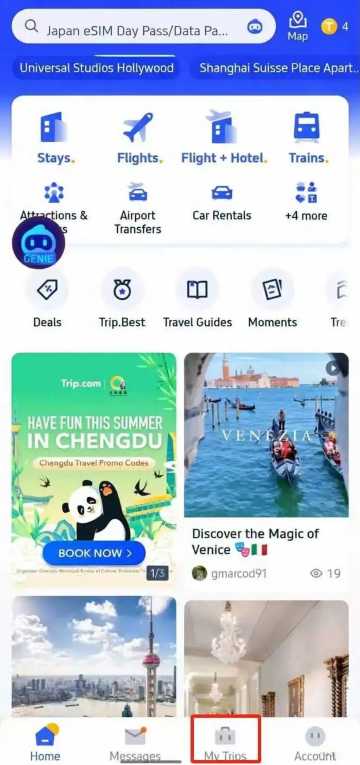
- Open the Trip.com app and log in.
- Tap the “My Trips” tab (bottom of the screen)—all bookings are sorted by date/time.
Step 2: Navigate to “Manage My Booking”
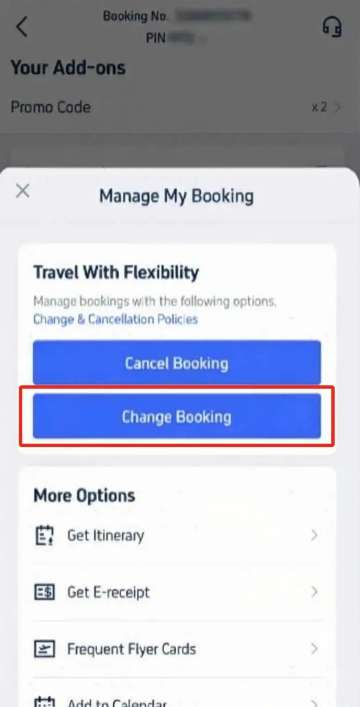
- Select the flight booking you want to modify.
- On the reservation page, tap “Manage My Booking”.
- To review fees and rules first, tap “Cancellation & Change Policies”.
Step 3: Submit a Change Request
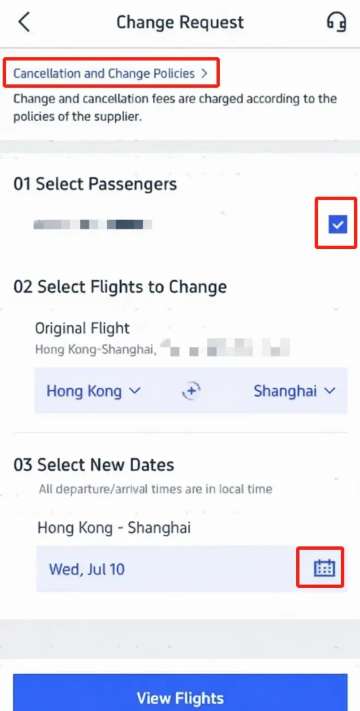
- Tap “Change Booking” (on the “Manage My Booking” screen) to go to the “Change Request” page.
- 01 Select Passengers: Choose which travelers need their flights changed.
- 02 Confirm Original Flight: Verify the flight you want to modify (e.g., Toronto (YYZ) to Vancouver (YVR)).
- 03 Pick New Dates: Tap the calendar icon to select new travel dates.
- Tap “View Flights” to see available options.
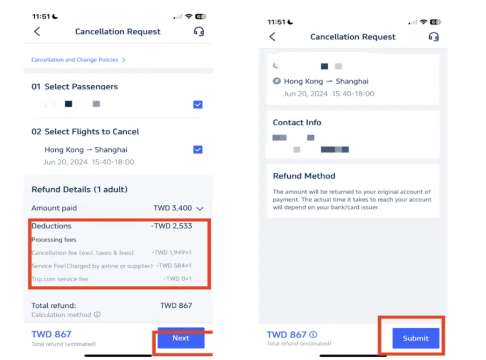
Step 4: Choose a New Flight
- Browse flights and use filters like “Non-stop” or “Lowest Price” to narrow down options.
- Ensure the flight is operated by the same airline or a partner.
- Tap your preferred flight, then select the cabin class (e.g., Economy, Business).
Step 5: Confirm & Pay
- Review the fare difference (if new flight is pricier) and refund for the original ticket.
- If the cost is acceptable, tap “Confirm” and complete payment.
- Check your email for the new booking and refund confirmations.
How to Change Hotel Bookings on Trip.com
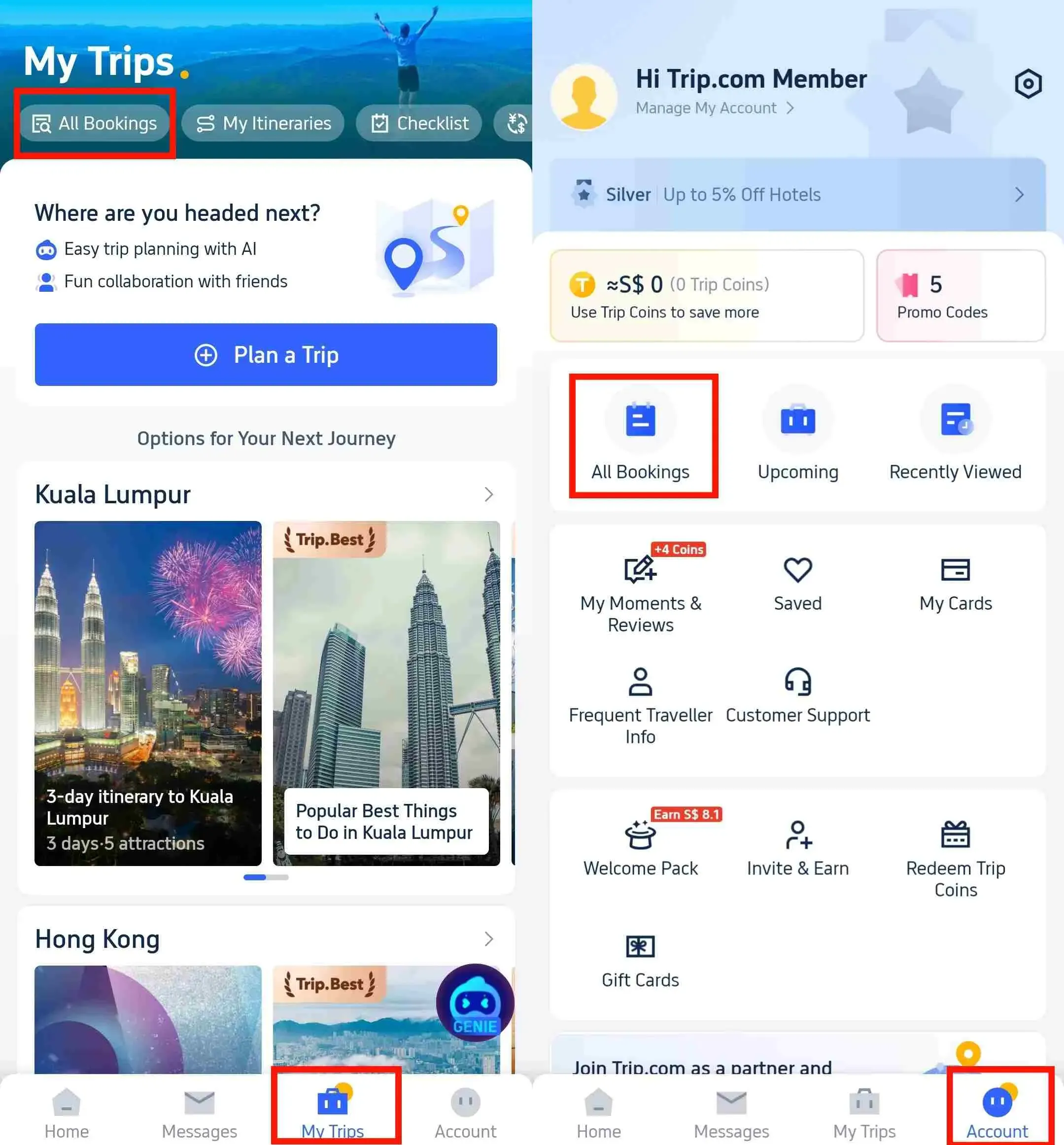
Hotel modifications are simpler than flights—here’s how to do it:
Step 1: Find Your Hotel Reservation
- Log in to the Trip.com app or website.
- Go to “My Trips → All Bookings” or “Account → All Bookings” → Locate your hotel reservation.
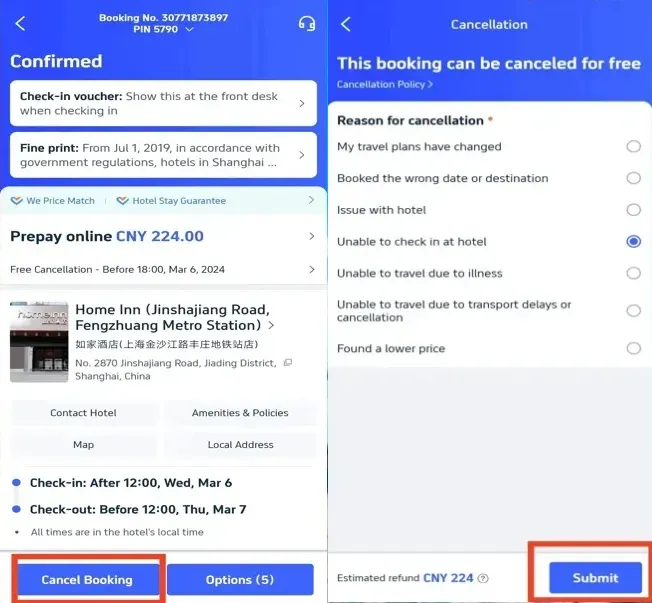
Step 2: Cancel Hotel Booking on Trip.com
- Tap “Cancel Booking” → Review the hotel’s cancellation policy (displayed automatically).
- Select a reason for cancelling → Tap “Submit”.
- Tap “View Cancellation Policy” to verify refund details → Confirm cancellation.
Step 3: Change Hotel by Rebooking
- Track progress via “My Trips → Refund Status”. Refunds take 1 business day to reflect in your account. If there’s an extra cost, pay the difference via your preferred method.
- Rebook the hotel or date you want on Trip.com.
How to Change Train Bookings on Trip.com
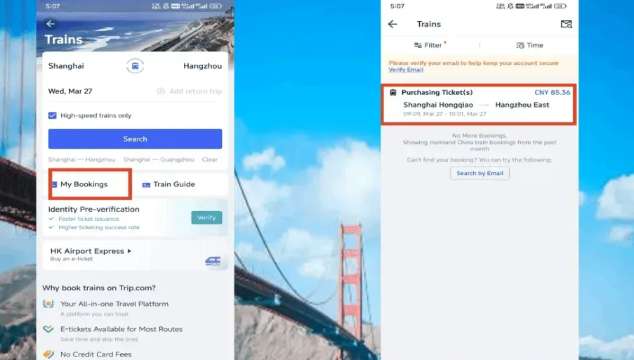
Train changes depend on whether you’ve collected your ticket and how close you are to departure:
Case 1: Uncollected Ticket & >30 Minutes Before Departure
- Open the Trip.com app → Go to “My Trips” → Select “Train Orders”.
- Find the booking and tap “Change” or "Refund" (I suggest just cancelling to get a refund if not on a tight schedule).
- Follow the on-screen prompts to select a new train
- >48 hours before departure, you can change to trains 'Within the advance booking period' (free)
- ≤48 hours, you can change to trains 'Before the original ticket departure date (including the same day)' for free, BUT can also change to later trains with a fee (5% or 15%).
- Confirm the change and receive a new e-ticket.
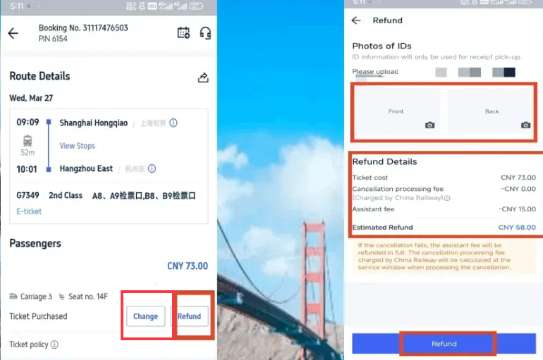
Case 2: Collected Ticket or ≤35 Minutes Before Departure
- You can modify online, but changing at the station is cheaper; just visit the nearest railway station.
- Bring:
- The original train ticket (physical copy).
- Valid ID (used to book the ticket, e.g., passport, national ID).
- Go to the ticket change counter and request modification (staff will assist with available trains).
Key Train Change Rules
- If the new ticket is cheaper, you’ll get a refund for the difference—but a fee may apply.
How to Avoid Trip.com Booking Change Fees
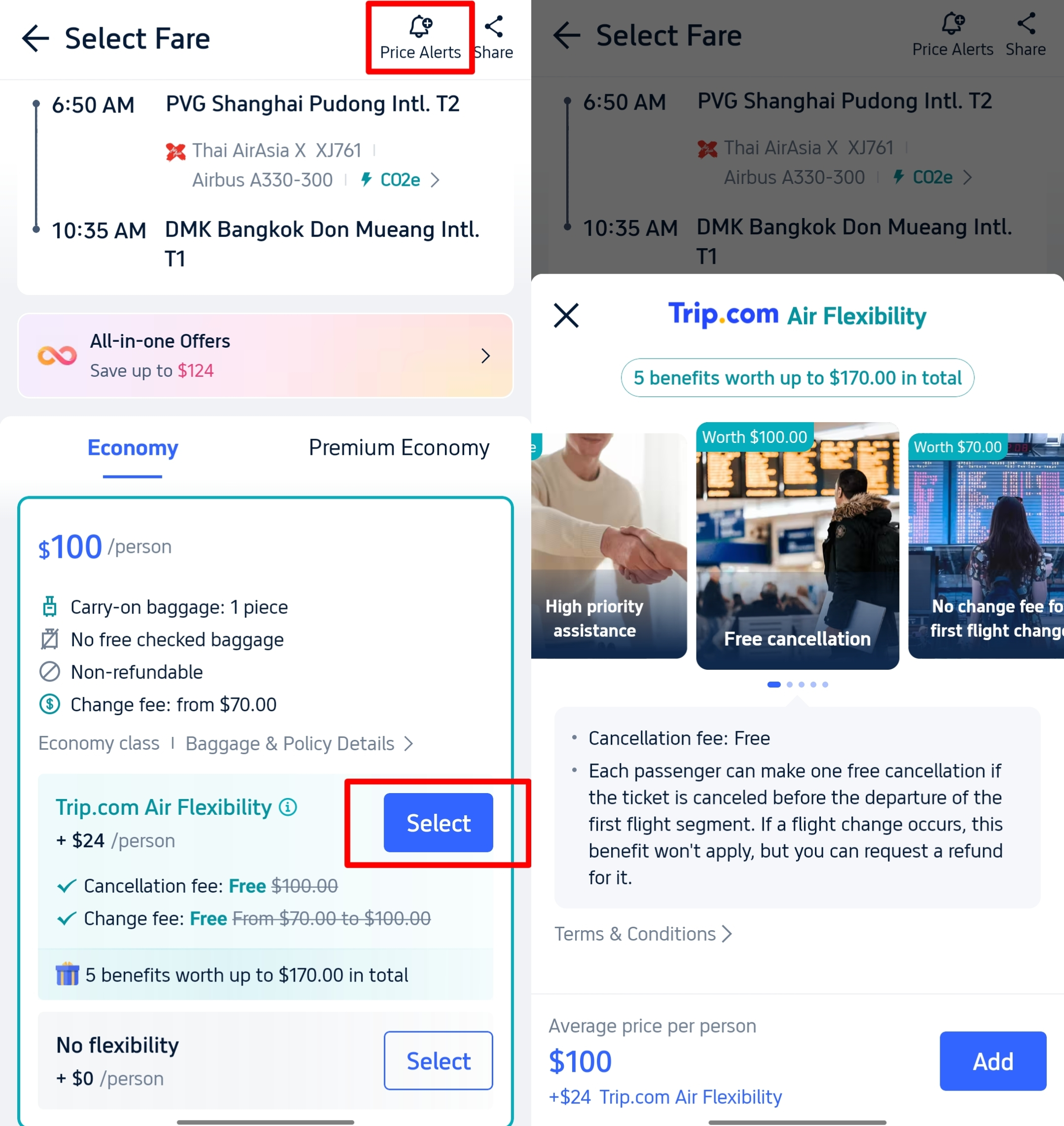
No one wants to pay extra for adjustments—follow these tips to minimize or avoid fees:
1. Book Flexible Options
- Flights: Choose “flexible flight tickets” or add the “Air Flexibility” add-on during booking for enhanced change perks (e.g., free date adjustments without high penalties).
- Hotels: Look for the “Free Cancellation” tag on hotel listings. This ensures you can modify or cancel without fees (within the hotel’s time window, e.g., 24 hours before check-in).
2. Change Early
Last-minute modifications (e.g., <24 hours before flight departure) often come with higher fees and limited availability. Aim to adjust your booking as soon as your plans change—airlines and hotels typically charge less for early changes.
3. Watch for Trip.com Promotions
Trip.com runs promotions that waive change fees or offer discounts on modified bookings. Check the “Deals” tab on the app or subscribe to email alerts to stay updated.
How Much Are Trip.com Booking Change Fees?

Fees vary by service type—here’s a breakdown of typical costs:
Flights
- Airline Fees: Depends on the airline (e.g., full-service carriers charge less than low-cost ones) and fare class (economy tickets have higher fees than business class).
- Fare Difference: If the new flight is more expensive, you must pay the full difference (no exceptions).
Hotels
- Flexible Rates: Free to change (no fees).
- Non-Refundable/Strict Rates: Cannot be changed (no option to pay a fee—booking is locked).
Trains
Fees are based on how close you are to departure (calculated as a percentage of the fare difference):
- 8 days or more before departure: No fee (full refund of the difference).
- 48 hours to 7 days before departure: 5% of the fare difference.
- 24–48 hours before departure: 10% of the fare difference.
- Less than 24 hours before departure to next day or later: 15% of the fare difference.
- Before 22:00 on the day of departure to next day: 40% of fare difference.
Trip.com Service Fees
Occasionally applies for processing changes—only if the airline/hotel does not handle the modification directly. This is clearly displayed on the “Confirm Booking” page.
Car Rentals
Car Rental Promo Code - 8% Off
New User Enjoy up to 8% Off
TRIPCAR8
Trip.com Payment Method Availability Across Platforms
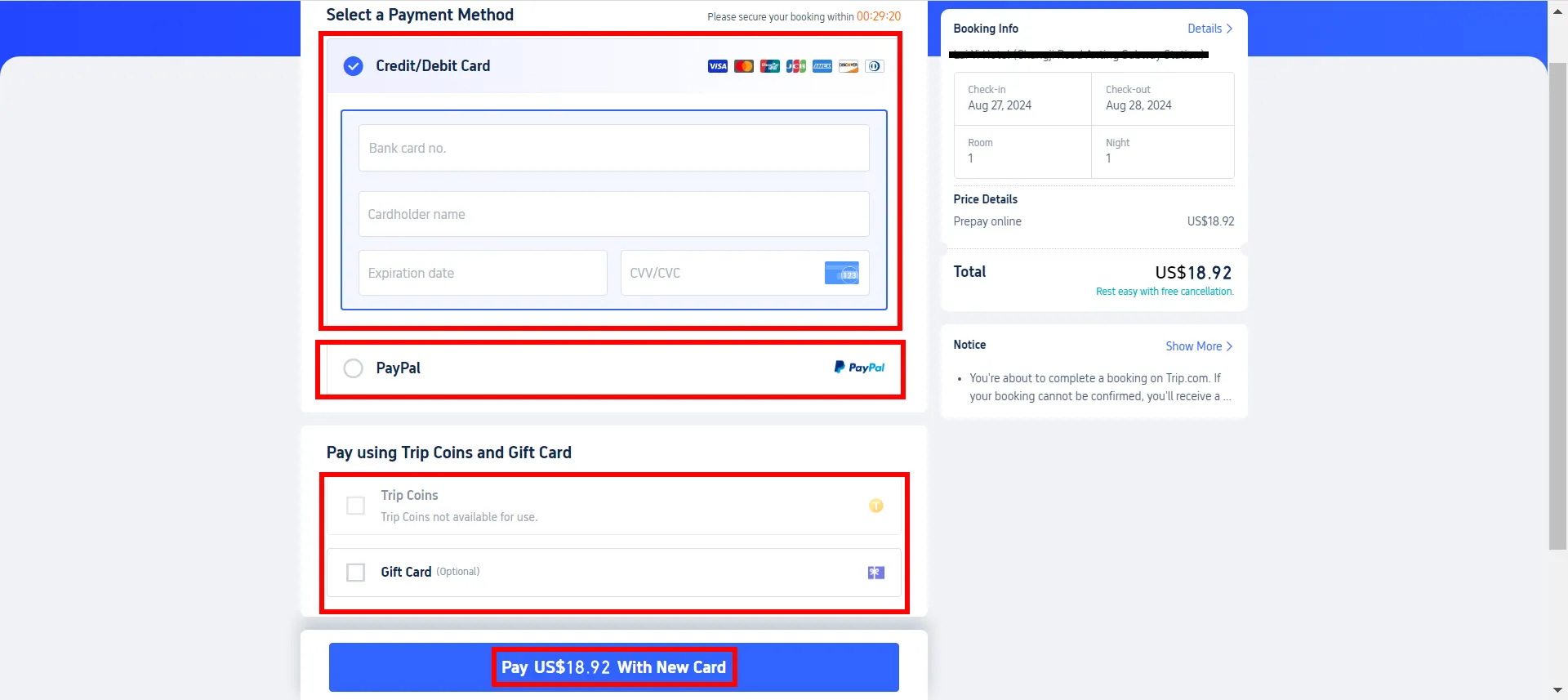
Payment Method | iOS | Android | Desktop Web | Mobile Web |
Credit Card | ✔️ | ✔️ | ✔️ | ✔️ |
Debit Card | ✔️ | ✔️ | ✔️ | ✔️ |
PayPal | ✔️ | ✔️ | ✔️ | ✔️ |
Google Pay | ❌ | ✔️ | ✔️ | ✔️ |
Apple Pay | ✔️ | ❌ | ❌ | ❌ |
Trip Coins | ✔️ | ✔️ | ✔️ | ✔️ |
Gift Card | ✔️ | ✔️ | ✔️ | ✔️ |
Trip.com Booking Change Rules & Customer Support
Before modifying, keep these universal rules in mind:
- No name changes (usually): You cannot transfer a booking to another person. Minor corrections (e.g., spelling errors in a passenger’s name) may be allowed—check the airline/hotel’s policy.
- Changes before departure/check-in: You cannot modify a booking after your flight has departed or after you’ve checked into a hotel.
- Confirmation via email: After successful modification, you’ll receive two emails: a new booking confirmation and a refund confirmation (if applicable). Refund timing depends on your bank/card issuer.
- Same provider (for flights): When changing flights, you must select a new flight operated by the same airline or its partner airlines (no switching to unrelated carriers).
[10% OFF] Global Hotel Recommendations
See All Hotels









FAQs about Trip.com Booking Change
-
Can I change my flight or hotel booking on Trip.com?
-
How to avoid Trip.com booking change/cancellation fees?
-
Can I transfer my Trip.com booking to another person?
-
How to cancel a Trip.com hotel booking and get a refund?
Disclaimer: This article has been provided by an individual contributor or third party platform. If there is any discrepancy regarding the copyright, please contact us directly and we will delete the content immediately.
Trending Searches
-
Trip.com links
-
eSIM/SIM card
-
Air travel guide
- Trip.com Cancellation Policy
- Trip Coins
- Trip.com VIP Lounge Access
- Trip.com Flight Cancellation Policy
- Trip.com Customer Service
- Trip.com Payment Methods
- Trip.com Phone Number
- Trip.com Hotel Refund
- Trip.com Membership
- Trip.com Change Passport
- Trip.com Check in
- Trip.com Ticket Issued Status
- Trip.com Flight Ticket
- Trip.com Baggage Allowance
- Trip.com Contact
- Trip.com Call Center
- How to List your Property on Trip.com
- Trip.com Price Match
- Trip.com Pay Installments
- Trip.com Booking Confirmation