Trip.com Seat Selection: How to Pick Your Seats on Flights

By Trip.com
June 29, 2026

Learn the ins and outs of selecting your seat on Trip.com flights—whether you're booking for the first time or managing an existing reservation. Discover the best times to choose your seat, understand the difference between free and paid options, and easily snag your preferred spot for a more comfortable journey!
New York
London
Rome
Paris
Sydney
Bangkok
See all flights


Can I Select My Seat on Trip.com?
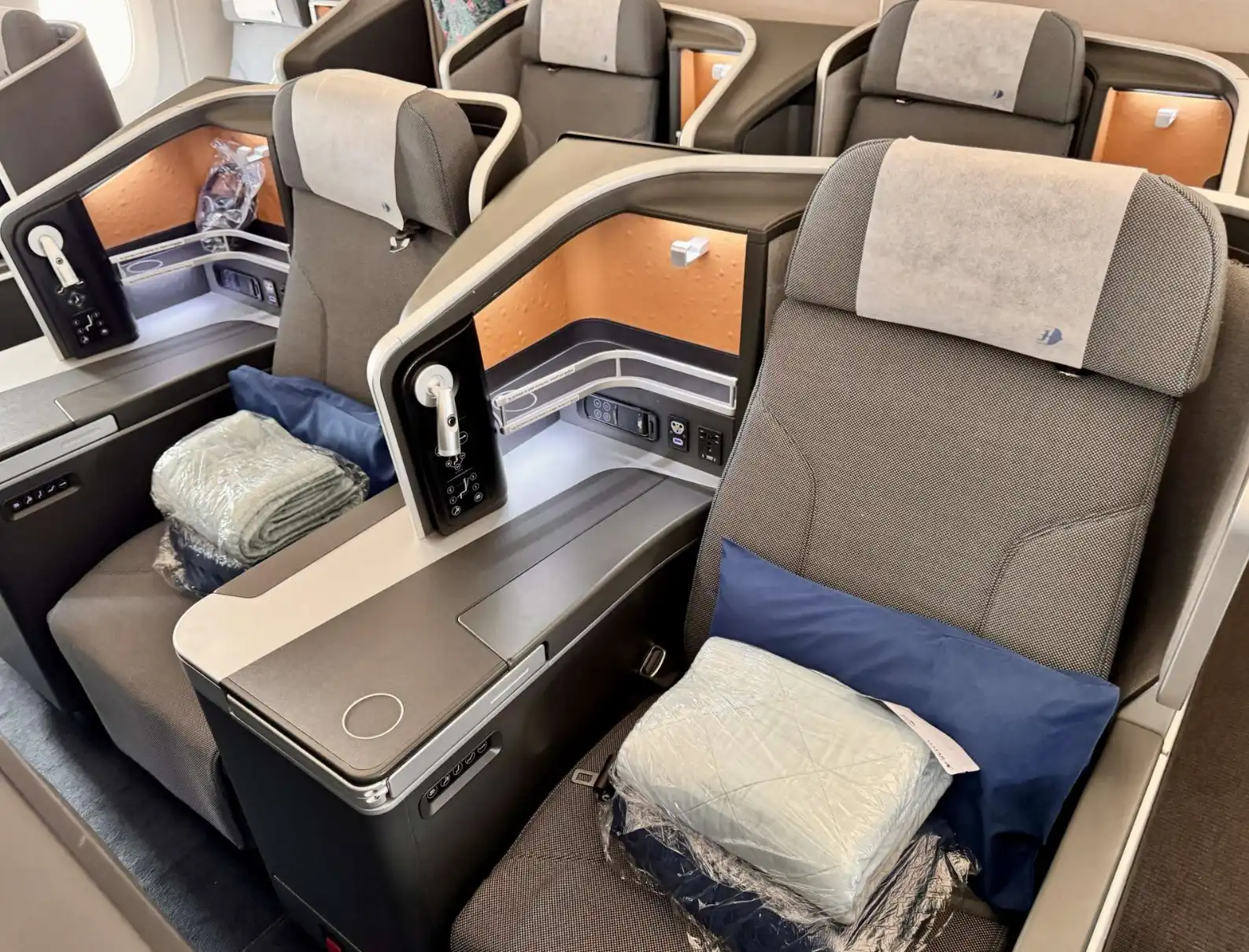
Yes, Trip.com makes it easy to pick your perfect spot! You can select your seat at various stages of your journey—during booking of your flight, managing an existing reservation, or checking in online.
Whether you're dreaming of that perfect window view or prefer the convenience of an aisle seat, Trip.com makes it easy to select your seat. Just keep in mind that availability can vary depending on the airline, your fare type, and when you book.
How to Select Seat on the Trip.com Website
Step 1: Access the Trip.com website to book your flight
- Access the Trip.com flight page
- Enter your departure city, arrival city, and travel date, then simply click "Search" to start exploring your options
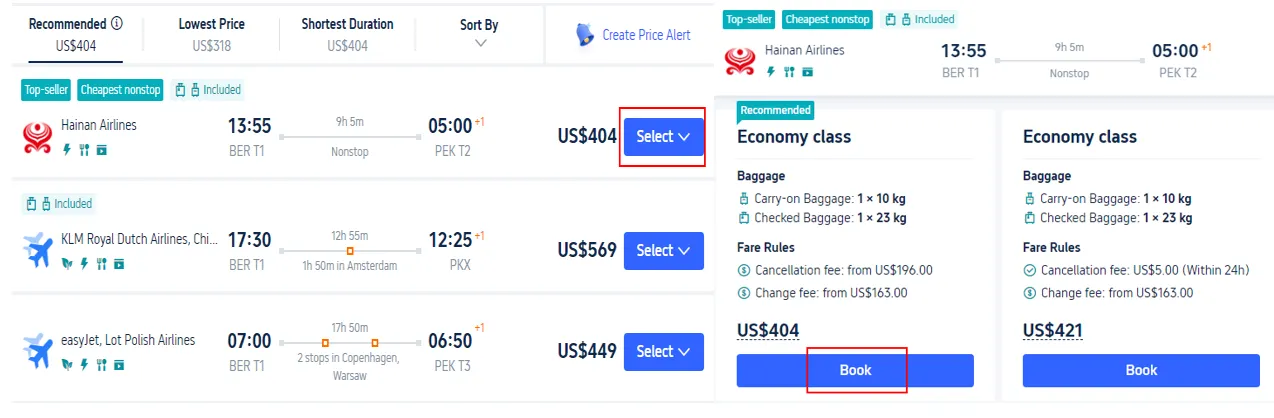
Step 2: Pick the flight you'd like to book
- Pick the flight that catches your eye from the search results, tap "Select," and then hit "Book" to proceed to the booking page!
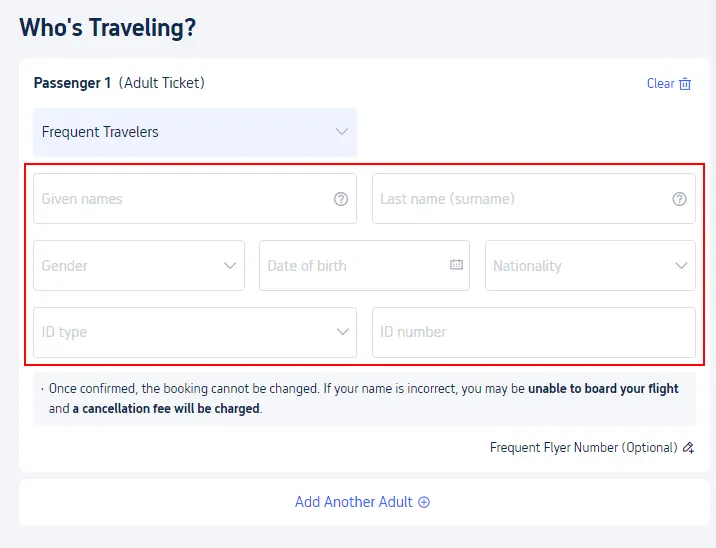
Step 3: Add your details to pick the perfect seat with Trip.com
- Enter your name, gender, nationality, and passport number, then tap "Next" to pick your perfect seat.
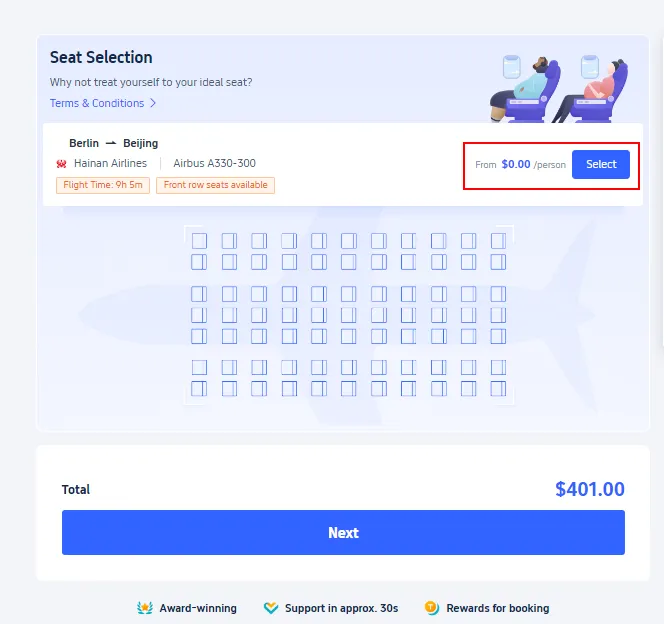
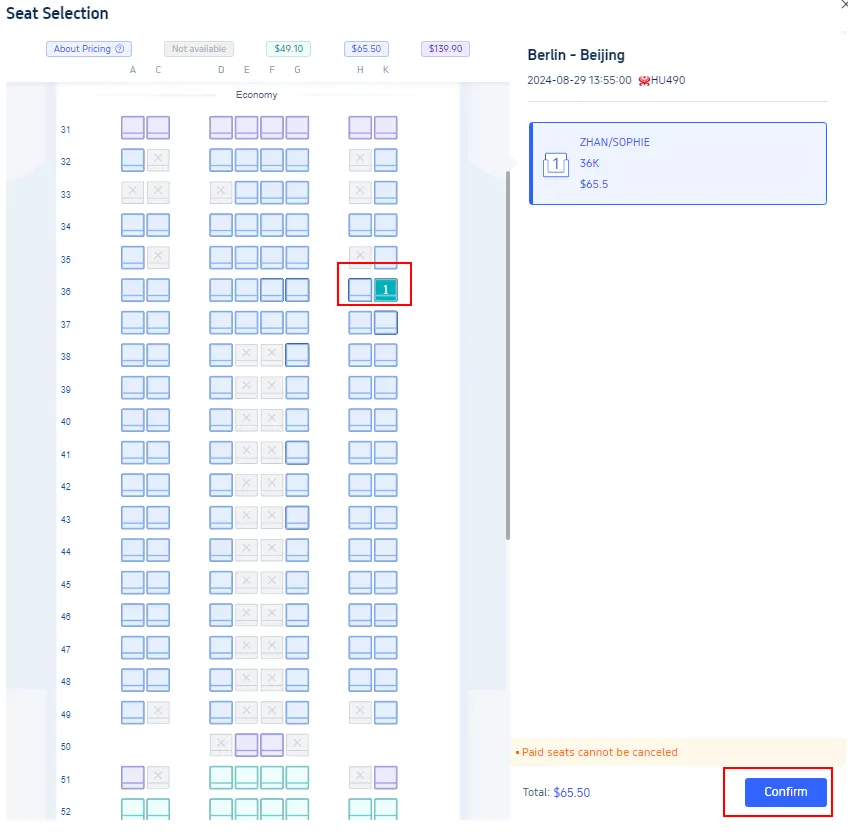
Step 4: Move on to the Trip.com seat selection page
- Click "Select" to pick your preferred seat.
Step 5: Finalize your Trip.com seat selection
- Typically, you'll have a few different seat types to choose from. Simply pick the one that suits you best and tap "Confirm" to finalize your seat selection.
Stay Connected With Trip.com!
See all attractions
 659539 booked













How to Choose My Seat on the Trip.com App?
Step 1: Open the Trip.com app to pick your perfect seat
- Log into your Trip.com account and tap "Upcoming" to find your flight booking, then simply click on it to reserve your seat.
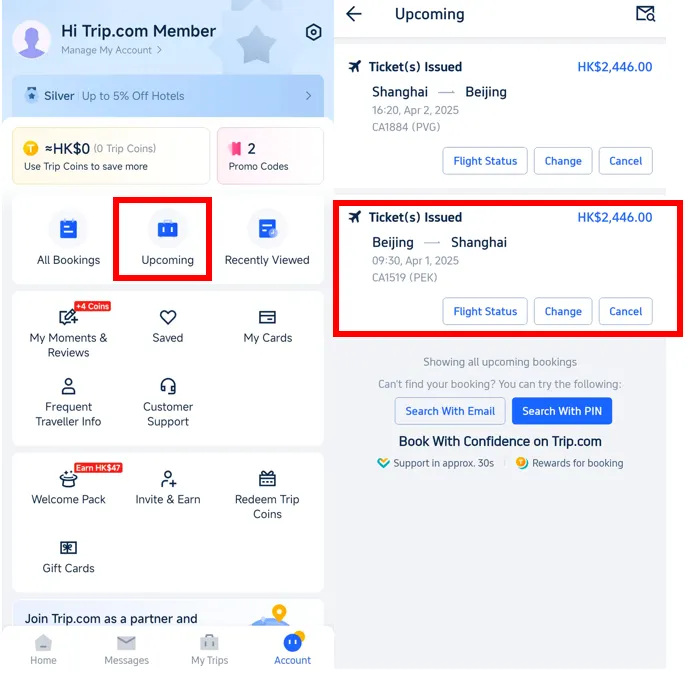
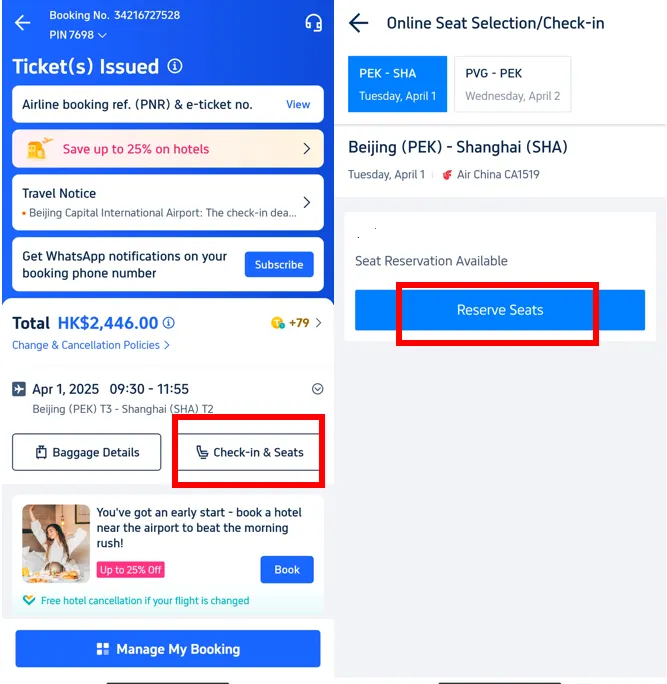
Step 2: Find your flight and reserve your seat on Trip.com
- Tap "Check-in & Seats" to head to the details page, then simply click "Reserve Seats" to pick your favorite spot!
Step 3: Pick your preferred seat
- Typically, you'll have a variety of seat types to choose from. Simply pick the one that suits you best, review and accept the seat selection policies, and tap "Confirm" to finalize your choice.
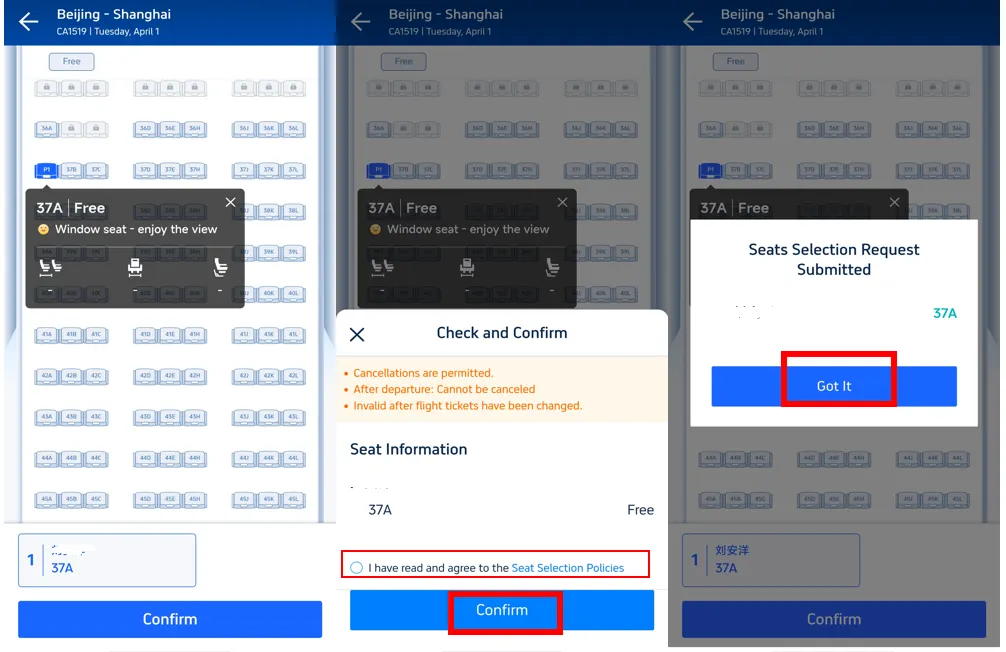
Step 4: Finalize your Trip.com seat selection
- Take a moment to double-check your seat choice and finalize your Trip.com seat selection.
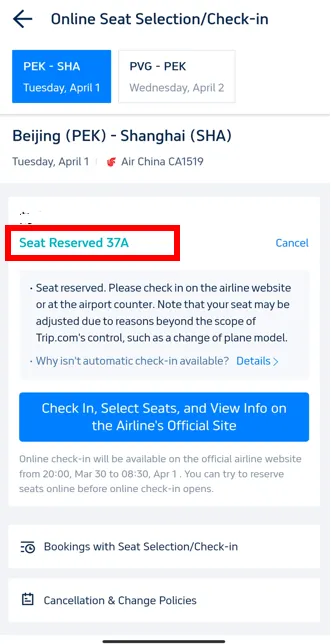
Why Can't I Select My Seats on Trip.com?

There are a few reasons why you might not be able to select your seat on Trip.com. Here’s a quick look at what might be happening:
Cause | Details |
|---|---|
Airline Policy | Keep in mind that some airlines restrict seat selection when booking through third-party sites, often reserving this perk exclusively for those who book directly on their own websites. |
Flight Booking Not Finalized | Sometimes, you'll be able to pick your perfect seat only after your booking is confirmed and the airline has finished processing your reservation. |
Flight Class Type | If you've booked a basic economy or similar restricted fare, keep in mind that the airline might not include free seat selection. |
Seat Availability | If your flight is nearly full, there might be few or no seats left to choose from in advance. In that case, your seat assignment will be taken care of at the airport when you check in. |
Group Bookings | Planning a group getaway? Just a heads-up: some booking systems might hold off on seat selection until you've entered the details for each traveler. |
Trip.com Seat Selection: Travel Tips

Knowing exactly when to select your seat on Trip.com is the secret to getting the best spot on the plane!
When to Select Seats on Trip.com
For most airlines, you can start picking your favorite seat the moment you book your flight—right during the booking process!
- Full-service airlines often let you lock in your favorite seat up to a year in advance—perfect for those who love to plan ahead!
- For budget airlines, timing varies significantly by airline. Certain airlines allows basic economy seat selection 7 days before departure. While many other budget carriers allow paid seat selection at booking but free selection or only free random assignment only at check-in (24 hours before).
The latest you can select your seat for a Trip.com booking is during online check-in, which usually opens 24 hours before your flight takes off.
- If you haven't picked your seat by then, don't worry—the airline will automatically assign one for you (check out the FAQs below for more details).
How to Cancel Seat Selection on Trip.com
Canceling your seat selection on Trip.com is a breeze—just follow these simple steps:
- Step 1: Log in to your Trip.com account and locate the booking where you'd like to cancel your seat selection.
- Step 2: Select "Seat Selection" > "Cancel Seat Selection" to head to the details page.
- Step 3: Choose the seat you'd like to cancel, confirm your choice, and submit your request.
Trip.com Seat Selection Cost
Whether your seat selection on Trip.com comes with a fee or is complimentary depends on the airlines and your specific ticket type and class of service.
- Full-service airlines: Standard fares typically include complimentary standard seat options on Trip.com (such as middle, window, or aisle seats in economy class, without extra legroom).
- Budget airlines: Many airlines offer complimentary basic seats when you check in online (usually 24 hours before departure), but keep in mind that selecting your seat in advance might come with an extra fee.
Want a little extra comfort? Premium seats—like those with extra legroom, bulkhead or exit row access, or preferred window and aisle spots on budget airlines—are available for selection on Trip.com for an additional fee.
- Seat prices vary depending on the airlines, the length of your flight (longer journeys typically cost a bit more), and the type of seat you choose.
Pro tip: Depending on your Trip.com membership level or if you have a Trip.com partner credit card, you might be able to skip the seat selection fee—be sure to check your account for available offers!
[10% OFF] Unlock Exclusive Global Hotel Discounts on Trip.com
New York
London
Rome
Paris
Sydney
Bangkok
See All Hotels



















































FAQs about Trip.com Seat Selection
-
Does Trip.com allow you to select seats?
-
Can I select a seat in a flight while booking on Trip.com?
-
How do I choose my seat after booking a flight on Trip.com?
-
How to select flight seats without paying on Trip.com?
-
What happens if I skip seat selection on Trip.com?
-
Why can't I select seats for my flight on Trip.com?
-
Can I select my seat when I check-in online for Trip.com flights?
-
Which seat is better in flight, left or right?
Disclaimer: This article has been provided by an individual contributor or third party platform. If there is any discrepancy regarding the copyright, please contact us directly and we will delete the content immediately.
Trending Searches
-
Trip.com links
-
eSIM/SIM card
-
Air travel guide
- Trip.com Cancellation Policy
- Trip Coins
- Trip.com VIP Lounge Access
- Trip.com Flight Change
- Trip.com E-Receipt
- Trip.com Flight Cancellation Policy
- Trip.com E-Ticket
- Trip.com Phone Number
- Trip.com Membership
- Trip.com Check in
- Trip.com Reviews
- Trip.com Ticket Issued Status
- Trip.com Flight Ticket
- Trip.com Booking Fee
- Trip.com Contact
- Trip.com Refund
- Trip.com Call Center
- How to List your Property on Trip.com
- Trip.com Pay Installments
- Trip.com Booking Confirmation