Step-by-Step Guide to Trip.com Hotel Refund

By Trip.com
June 29, 2026

Booking a hotel on Trip.com is super easy, but let’s be real—travel plans can change in a heartbeat. Whether you’ve got a last-minute schedule shift, a missed flight, or you just changed your mind, it’s good to know how Trip.com’s hotel refund policy works. This guide will break down cancellation rules, how to check your refund status, and what to expect for processing times right here.
New York
London
Rome
Paris
Sydney
Bangkok
See all flights


How Trip.com Hotel Refunds Work
Not every hotel booking is the same—your refund depends entirely on the specific cancellation policy of the hotel you booked. Here’s the breakdown:
Free Cancellation Hotels
These hotels let you cancel before a set deadline to get a full refund from Trip.com. You’ll find the exact cutoff time right in your booking details—no hidden fine print here.
Partially Refundable Hotels
You might still get a partial refund with these, but keep in mind: the hotel could charge a cancellation fee, and that fee usually depends on how close your cancellation is to your check-in date.
Non-Refundable Hotels
These bookings are the least flexible. Cheaper rates with no cancellation or refund options—you'll lose the full payment if you can't stay.
Pro Tip: Before making any changes, double-check the cancellation policy in your Trip.com booking confirmation—this is where you’ll find all the details specific to your stay.
Step-by-Step: How to Cancel Your Trip.com Hotel Booking
Step 1: Sign in to your Trip.com account
Go to the Trip.com website or open the Trip.com app, then log in with your email and password.
Step 2: Find your bookings
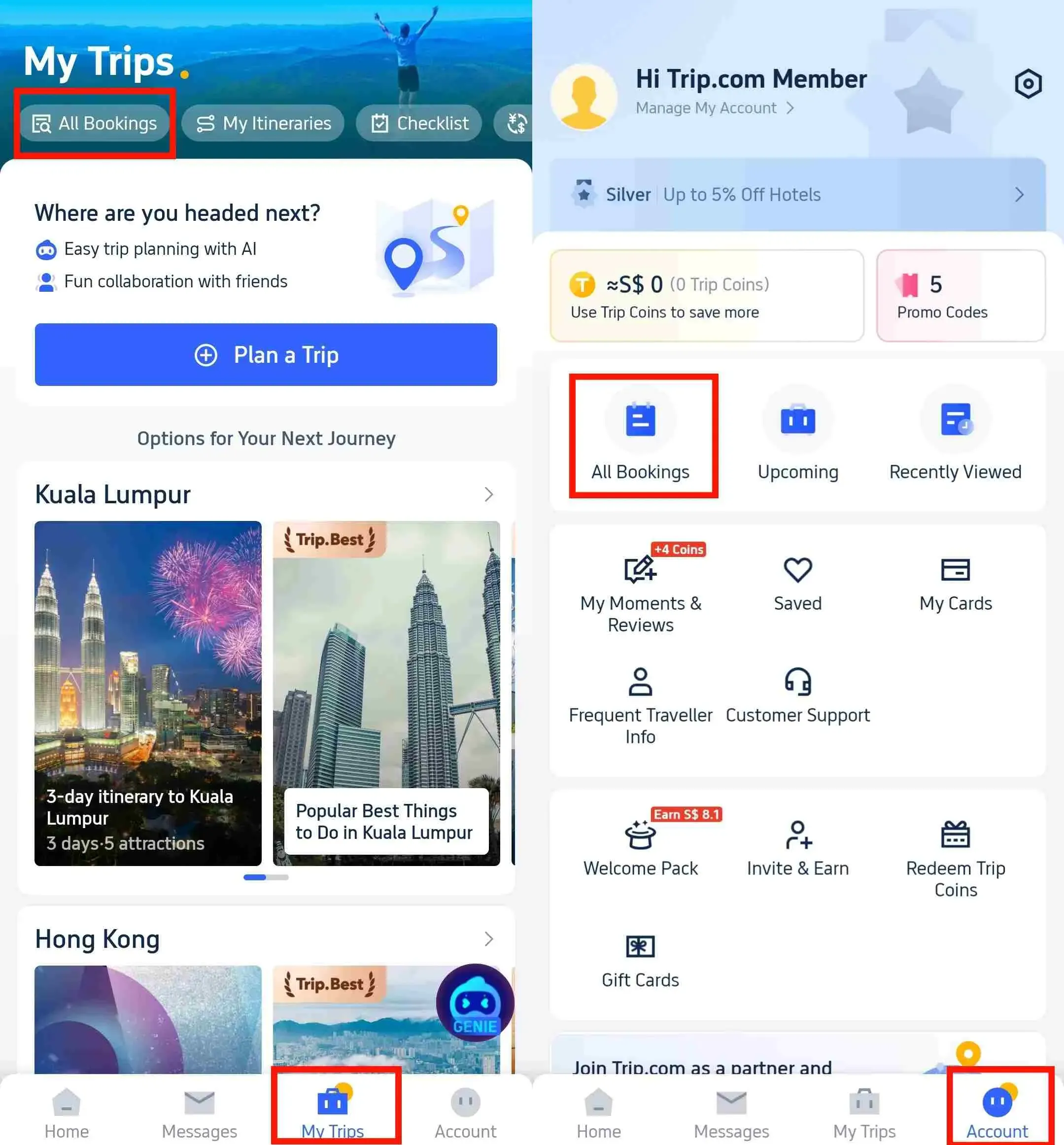
Once logged in, head to “My Trips - All Bookings” (or “Account - All Bookings” on the app)—it’s right in the main menu. From there, locate the hotel booking you want to cancel.
Step 3: Select the booking to cancel
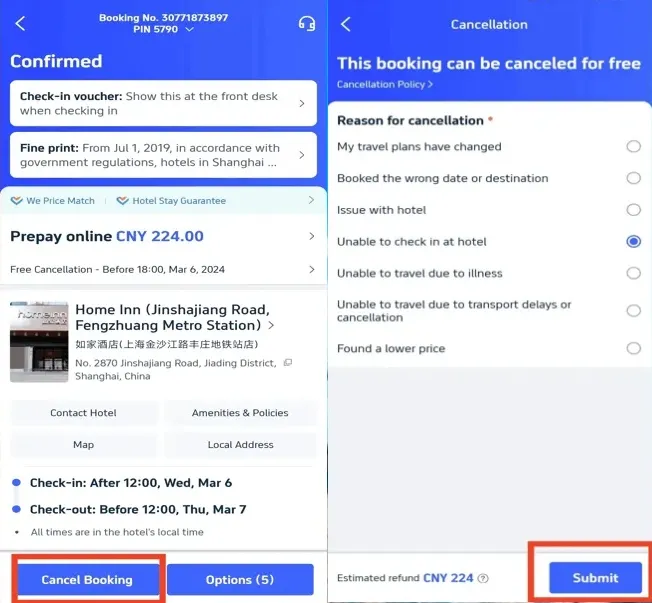
If your booking is eligible for a refund, just click “Cancel Booking.” You’ll be asked to pick a reason for cancelling, then hit “Submit” to confirm your refund request.
Step 4: Confirm your cancellation and refund
After submitting, you’ll get a confirmation from Trip.com. Click “View cancellation policy” if you want to double-check your refund details.
Step 5: Check your refund status
Tap “Refund Details” in the app to see how your refund is going. If you run into delays or have questions, our customer service team is always here to help.
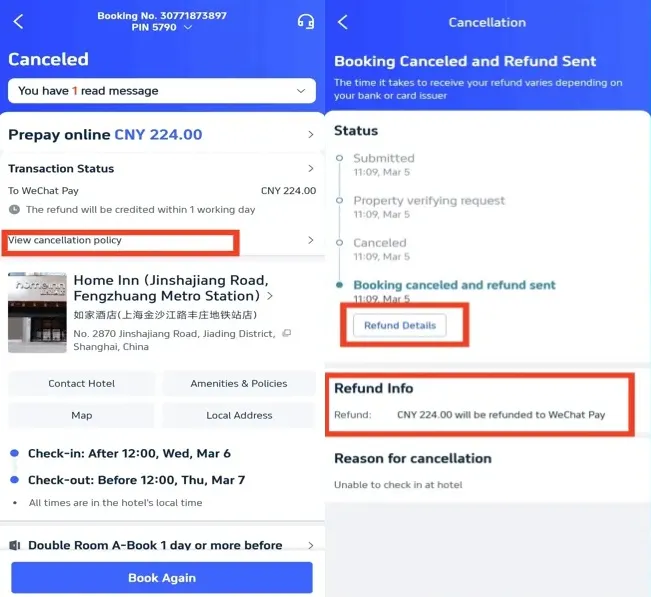
Quick Note: Refunds are usually credited back to your original payment method, and receipt of funds takes 1-7 business days depending on payment method.
Stay Connected With Trip.com!
See all attractions
 657114 booked













How to Check Your Trip.com Refund Status

Once you’ve cancelled, checking your refund status is straightforward:
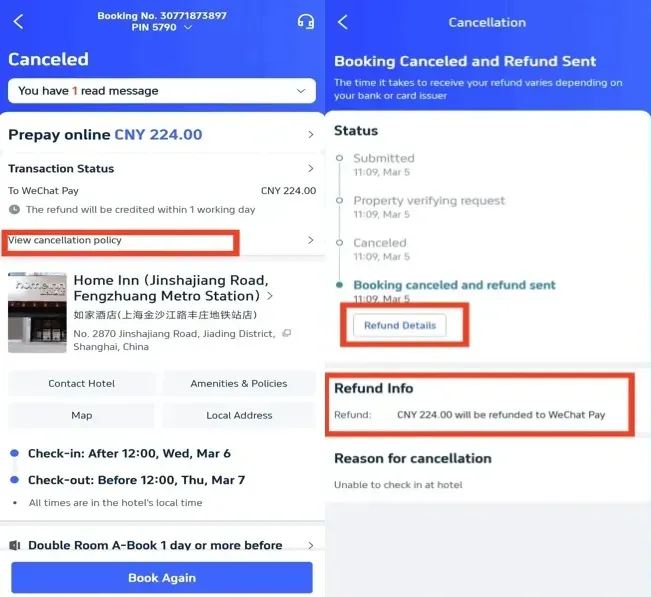
- Log in to your account and go to My Bookings.
- Select the hotel reservation you want to check.
- Trip.com will show you exactly where your refund stands—whether it’s “Processing,” “Refunded,” or “Completed.”
- You will also receive an email update as soon as your refund is processed, so you won’t be left in the dark.
How Long Does a Trip.com Hotel Refund Take?

Processing time depends on how you paid—here’s what to expect:
- Credit/debit cards: 3-7 business days
- PayPal/e-wallets: 1-3 days
- Bank transfer: processed within 1 working day with an extra 1-3 days for bank transfers/credit cards
Heads Up: Some refunds go through quickly, but hotel policies and bank processing times can sometimes cause small delays—this is totally normal.
Understanding Trip.com Hotel Cancellation Fees
Whether there are extra cancellation fees or not depends on a few things:
- Timing: The closer you are to your check-in date, the higher the fee is likely to be.
- Room type: Promotional rates are often non-refundable, so keep that in mind when booking.
- Seasons: Bookings during peak holiday seasons might have stricter cancellation terms.
Important Notes About Your Trip.com Hotel Refund

Getting a refund is easy once you know the hotel’s cancellation policy. For the most flexibility, we recommend choosing hotels with free cancellation. And don’t forget to check your refund status in the app after canceling—this way, you can avoid unexpected fees and get your money back as quickly as possible.
[10% OFF] Global Hotel Recommendations
New York
London
Rome
Paris
Sydney
Bangkok
See All Hotels

















































Trip.com Hotel Refund FAQs
-
How long does a Trip.com hotel refund take?
-
What should I do if my Trip.com refund is delayed?
-
How do I know if my Trip.com hotel booking is refundable?
-
What should I do if Trip.com denies my hotel refund request?
-
Does Trip.com offer a refund within 24 hours of booking a hotel?
Disclaimer: This article has been provided by an individual contributor or third party platform. If there is any discrepancy regarding the copyright, please contact us directly and we will delete the content immediately.
Trending Searches
-
Trip.com links
-
eSIM/SIM card
-
Air travel guide
- Trip.com Cancellation Policy
- Trip Coins
- Trip.com Seat Selection
- Trip.com E-Ticket
- Trip.com Customer Service
- Trip.com Payment Methods
- Trip.com Phone Number
- Trip.com Membership
- Trip.com Change Passport
- Trip.com Reviews
- Trip.com Flight Ticket
- Trip.com Baggage Allowance
- Trip.com App
- Trip.com Booking Change
- Trip.com Contact
- Trip.com Call Center
- Air Flexibility
- Trip.com Price Match
- Trip.com Pay Installments
- Trip.com Booking Confirmation