Trip.com Flight Ticket: Booking & E-Ticket Guide

By Trip.com
June 28, 2026

Planning a trip from Canada? Let's break down everything you need to know about Trip.com flight tickets—what they are, how to book, and how to check your booked flight tickets.
Bangkok
Singapore
Shanghai
Tokyo
Seoul
New York
See all flights


What Is a Trip.com Flight Ticket
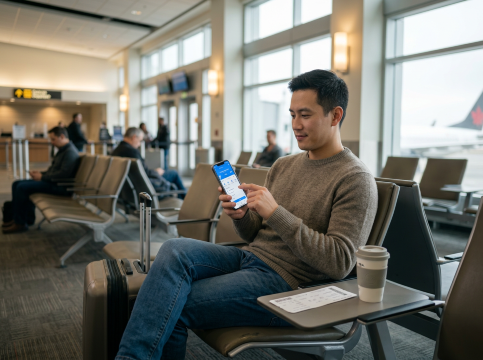
Trip.com is a leading global online travel platform serving millions of travelers worldwide. It is a one-stop shop for booking flights, hotels, vacation packages, and more—all with a user-friendly interface and competitive pricing.
A Trip.com flight ticket is simply an electronic flight reservation (e-ticket) issued through the platform, connecting you to over 600 airlines worldwide, including all major Canadian carriers like Air Canada, WestJet, Porter, and Flair.
How it works
- Search and compare flights
- Book securely using preferred payment methods (credit cards, debit, etc.)
- Receive instant e-ticket confirmation via email and in the Trip.com app
- Manage your booking anytime, anywhere on Trip.com website or app
How to Book Flights on Trip.com?
Follow these steps to book your next flight.
Step 1: Search for Flights
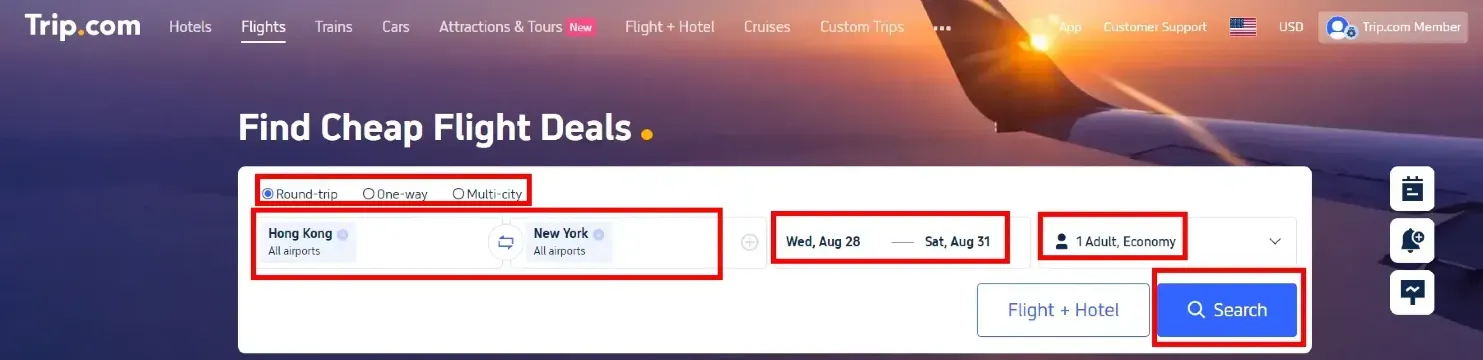
On the flights page, enter your departure and destination cities, travel dates, and preferred cabin class (Economy, Business, etc.). Choose between one-way, round-trip, or multi-city itineraries.
Step 2: Filter & Compare
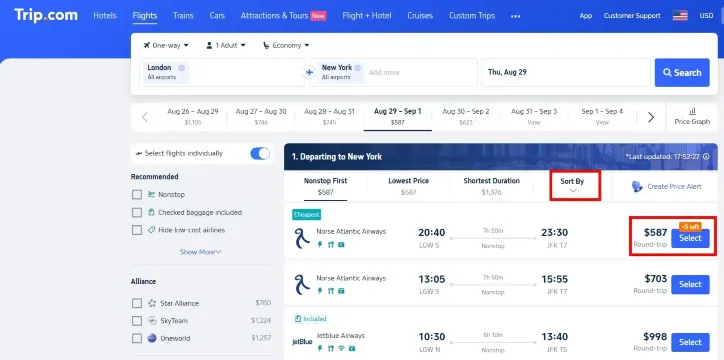
Use filters for price, duration, and airline preferences to find the best deal for your budget.
Step 3: Fill in Passenger Information and Pay
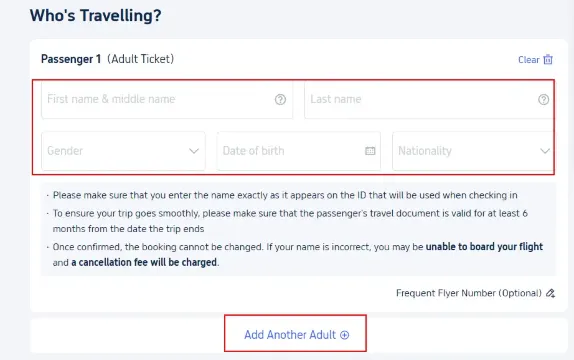
Enter the details for your personal information. Ensure names match your ID or passport. Review your itinerary and make your preferred payment.
Step 4: Select Add-ons
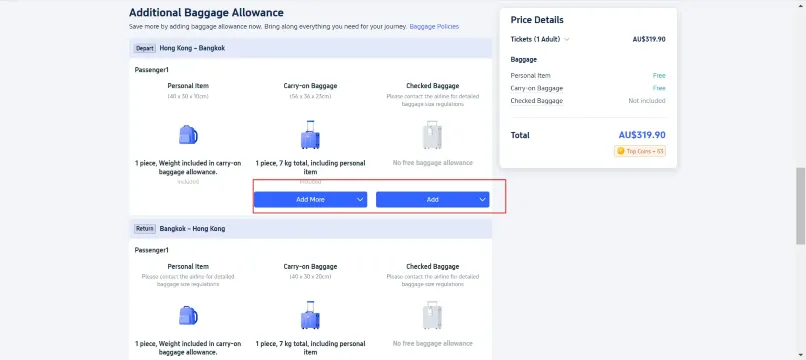
Now, you have the option to choose additional services such as extra baggage allowance, travel insurance, lost baggage coverage protection, and flight perks (seat upgrades, meal options, etc.).
Step 5: Final Check & Complete Booking
Verify all passenger details and add-ons for accuracy, select your payment method to finish payment. Once processed, your flight confirmation and e-ticket will be sent to your registered email.
Stay Connected With Trip.com!
See all attractions
 659539 booked













How to Get Your Trip.com E-Ticket?
An e-ticket is convenient for your check-in process. Follow these steps to get your e-ticket on Trip.com.
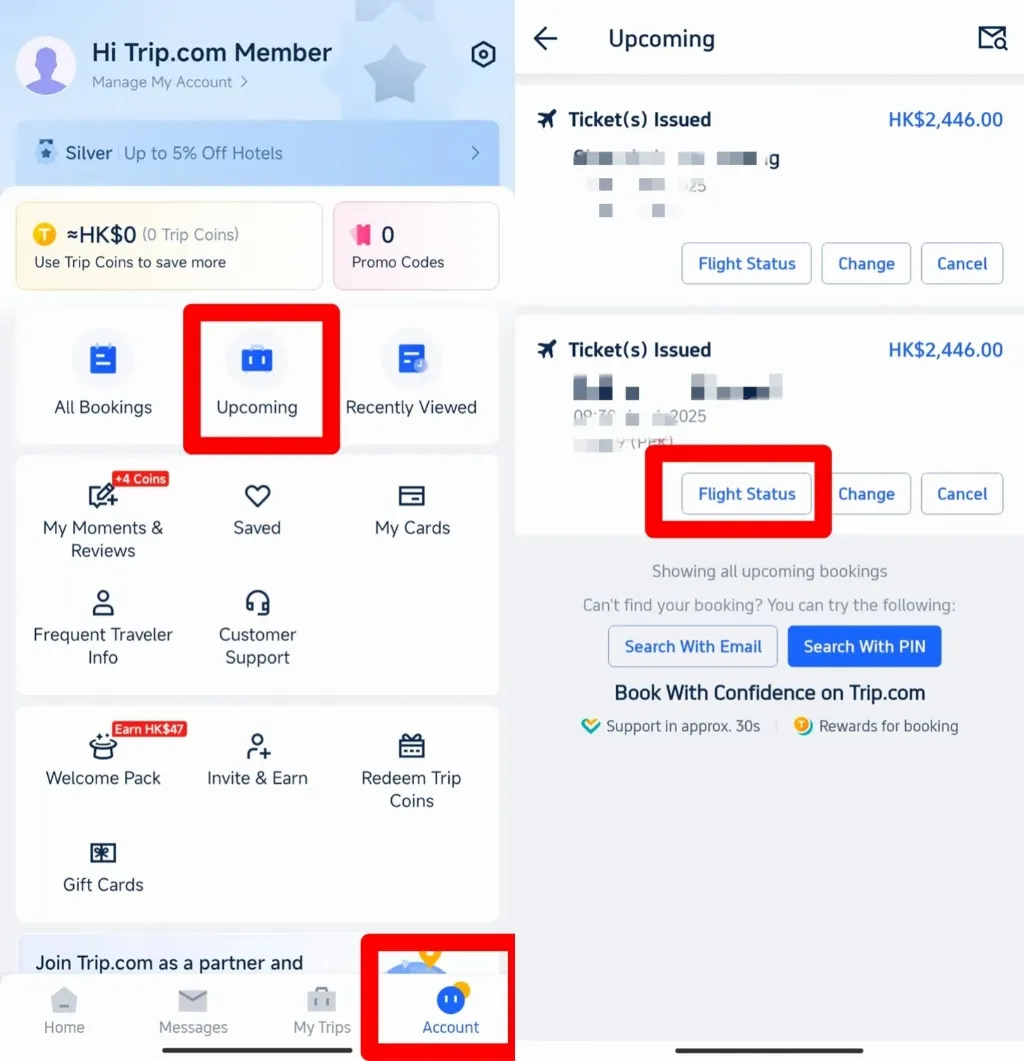
Step 1: Go to Account & Enter "Flight Status"
Go to your account first. Find "Upcoming" to view your active trips. Tap on your specific flight to enter the "Flight Status" page.
Step 2: Manage Booking & Get an E-Ticket
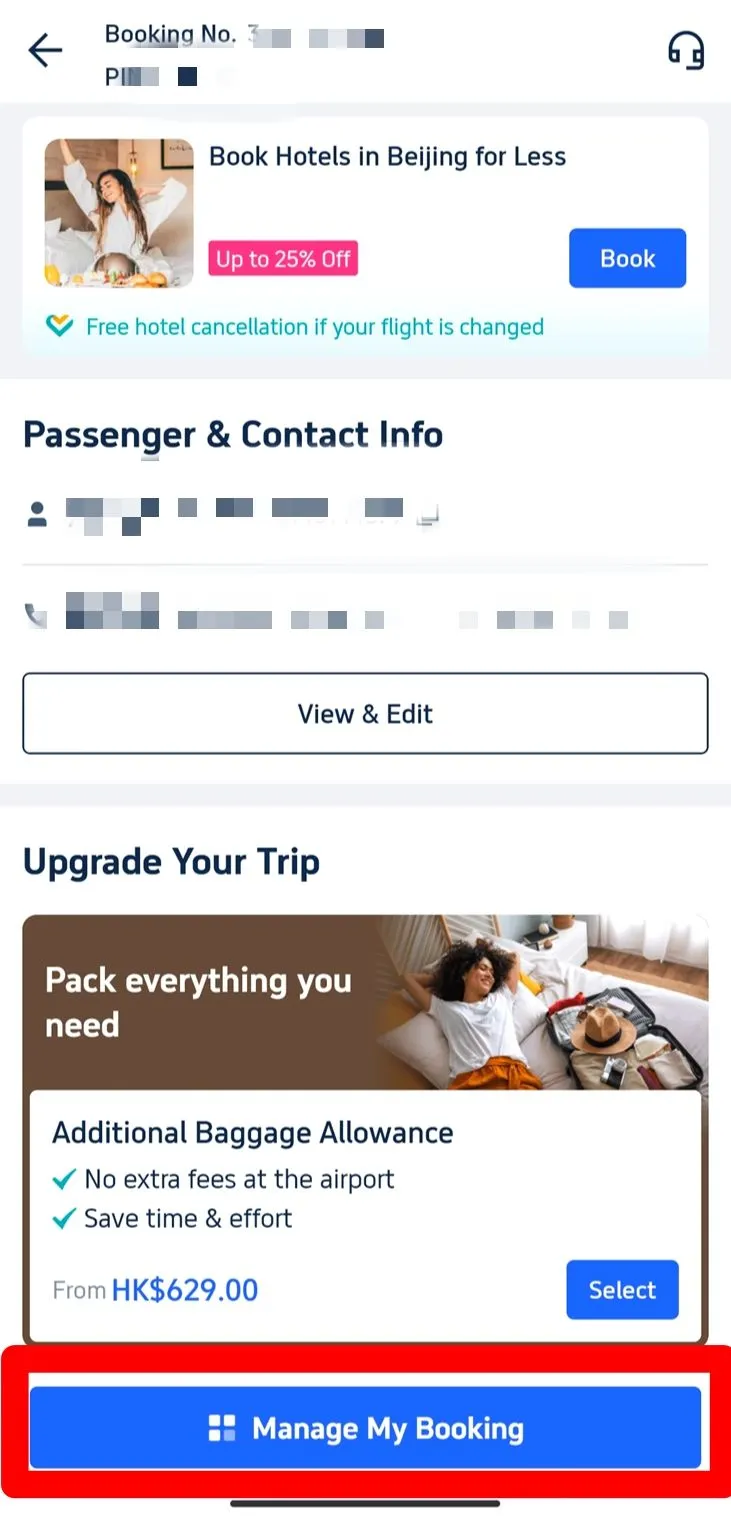
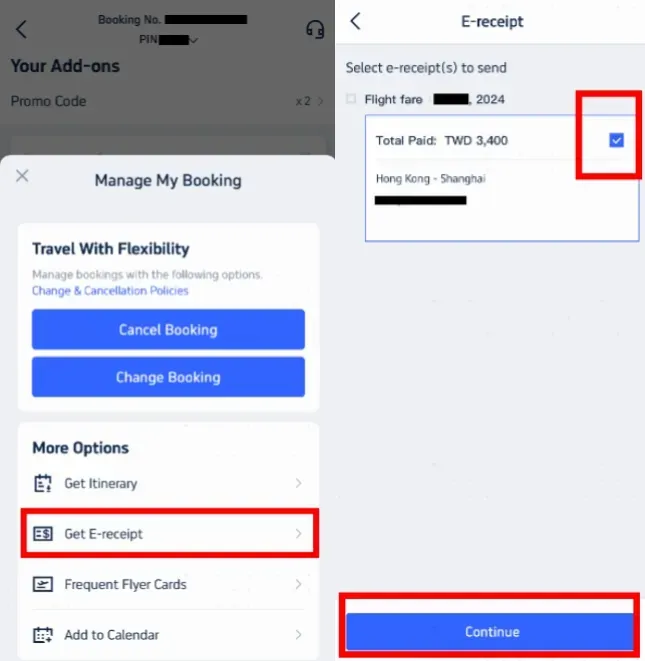
Select "Manage My Booking" and locate the "Get a Receipt" or "E-Ticket" option under the "More Options" menu.
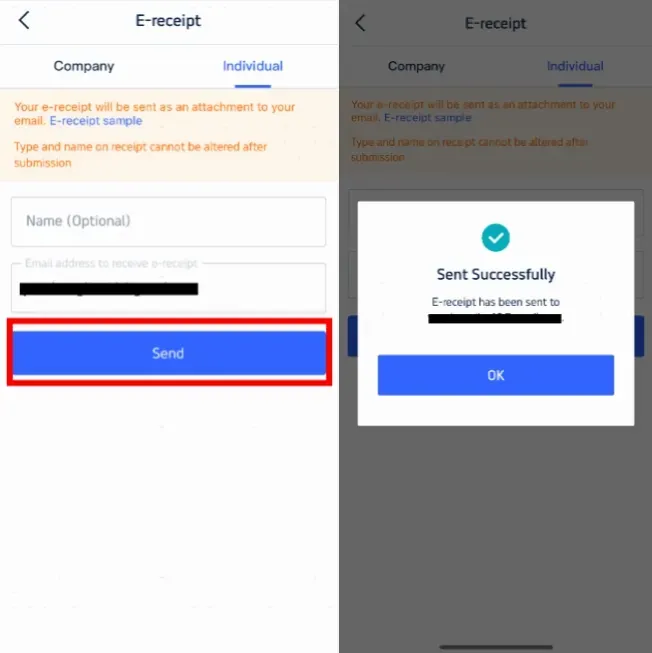
Step 3: Enter Details for Receipt
Choose the receipt type (Individual or Business), enter your email address, and tap "Send." You will receive a digital version of your official flight e-ticket shortly.
Note: Always verify details on the official airline website using your e-ticket number for added peace of mind.
Trip.com Flight Ticket Printing & Check-In Procedures
While digital copies are sufficient for most domestic travel, we recommend carrying a printed copy for international flights. It ensures that you can present your itinerary at immigration or security checkpoints even without an internet connection.
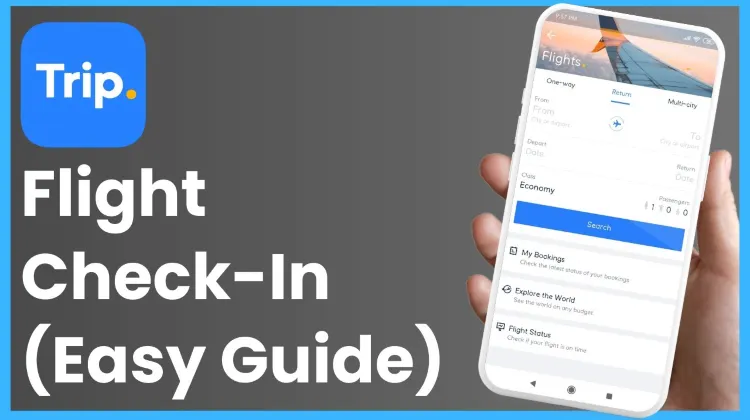
Online vs. Airport Check-In
- Online Check-In: Most airlines allow you to check in via their official website or app 24 hours before departure. Use your Booking Reference (PNR) found on your Trip.com e-ticket to select seats and download your boarding pass.
- Airport Check-In: Present your digital or printed e-ticket along with your passport/ID at the airline's check-in counter or self-service kiosk.
Trip.com Flight Ticket Policies: Refund & Cancellation
Trip.com’s cancellation policies vary depending on the airline’s fare rules and the type of ticket purchased.
Before canceling, check the "Refund & Cancellation Policy" carefully in your booking details to see if your ticket is refundable or subject to a fee.
How to cancel your flight on Trip.com?
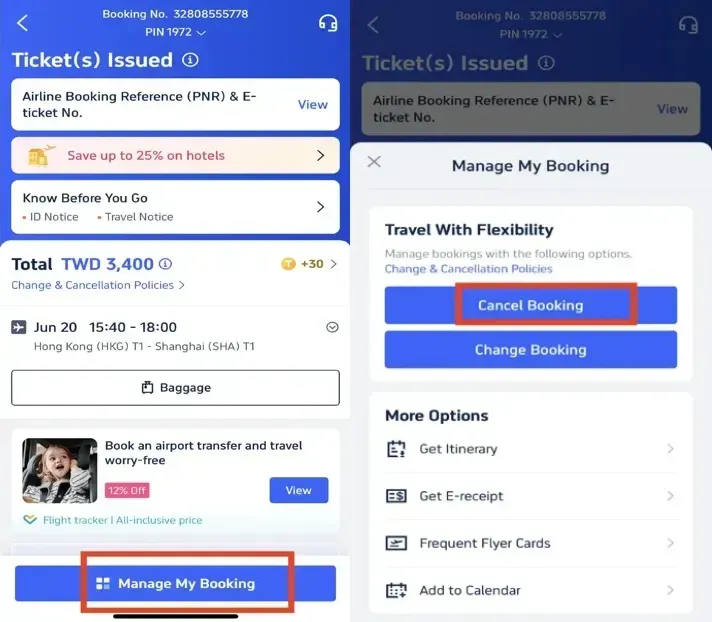
- Step 1: Go to "My Trips" and select the flight you wish to modify.
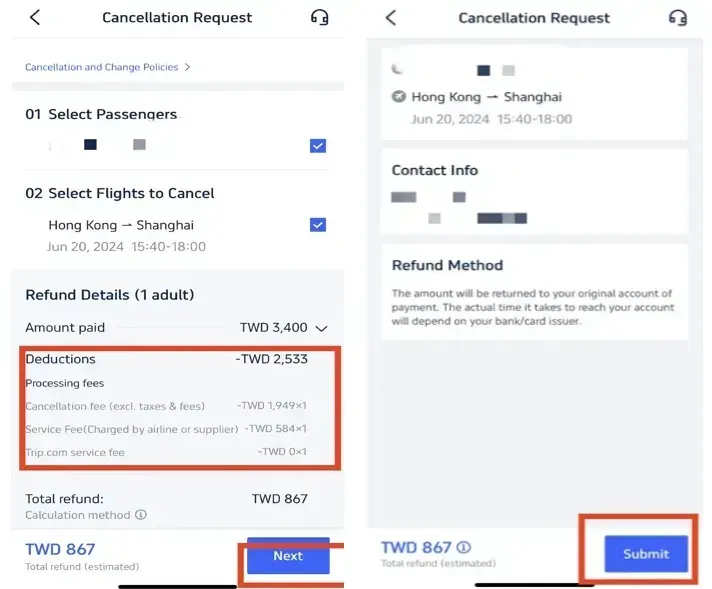
- Step 2: Tap "Cancel Booking" and follow the prompts to see the estimated refund amount.
- Step 3: Submit your request. Refunds are processed according to airline timelines and may take several business days to reflect in your account.
[10% OFF] Global Hotel Recommendations
Bangkok
Singapore
Shanghai
Tokyo
Seoul
New York
See All Hotels

















































FAQs about Trip.com Flight Ticket
-
What if my name is misspelled?
-
How can I check if my Trip.com flight ticket is legitimate?
-
How does the Trip.com flight booking process work?
-
How do I check in for a flight I booked through Trip.com?
-
Can I trust Trip.com for flight bookings?
Disclaimer: This article has been provided by an individual contributor or third party platform. If there is any discrepancy regarding the copyright, please contact us directly and we will delete the content immediately.
Trending Searches
-
Trip.com links
-
eSIM/SIM card
-
Air travel guide
- Trip.com Cancellation Policy
- Trip Coins
- Trip.com E-Receipt
- Trip.com Customer Service
- Trip.com Payment Methods
- Trip.com Phone Number
- Trip.com Hotel Refund
- Trip.com Change Passport
- Trip.com Reviews
- Trip.com Ticket Issued Status
- Trip.com Flight Ticket
- Trip.com Baggage Allowance
- Trip.com App
- Trip.com Booking Change
- Trip.com Contact
- Trip.com Refund
- Trip.com Call Center
- Air Flexibility
- How to List your Property on Trip.com
- Trip.com Pay Installments